
Lightroom Classic for Photographers: A Practical Guide to Organising and Editing Your Photos
By Jane Allan
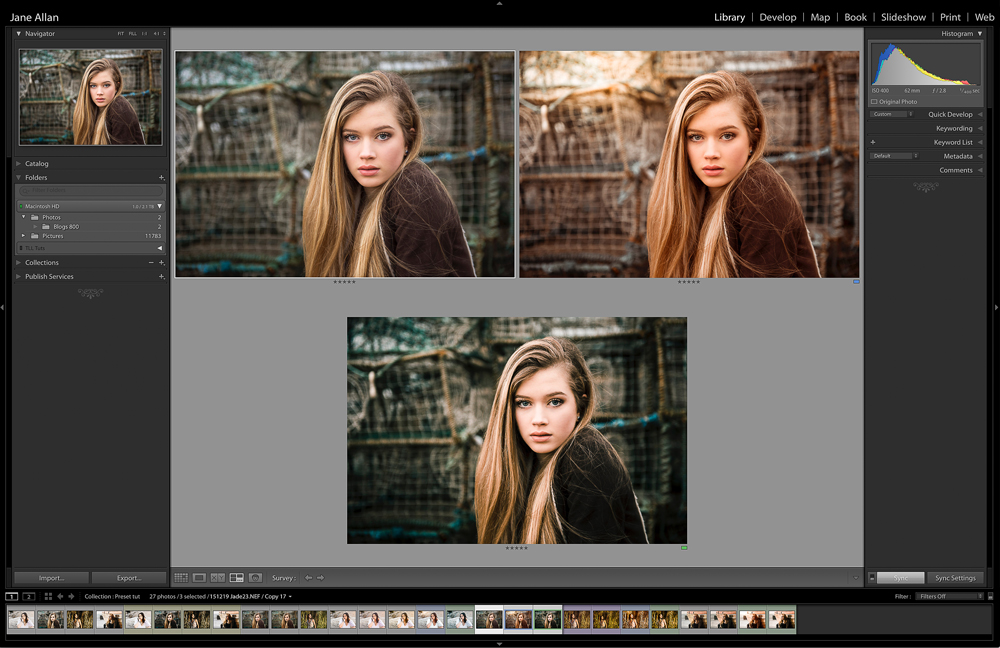
For many photographers, taking the photograph is only the beginning.
Once a shoot is finished, there are hundreds or sometimes thousands of images to sort, select, organise, edit and export. If you don’t have a consistent workflow, post-production can quickly become one of the most time-consuming parts of photography.
Photographer Jane Allan describes Lightroom Classic as the beating heart of her photography workflow, using it to manage photographs, make initial selections, edit RAW files, organise finished images and prepare them for different uses.
Lightroom Classic isn’t the only software available for photographers, and you certainly don’t have to use it. But its combination of photo management and non-destructive editing makes it a particularly useful option for photographers who need to deal with large numbers of images.
Here are some of the reasons Lightroom Classic can become such an important part of a photography workflow.
1. Keep your photographs organised
One of the biggest challenges for any photographer isn’t taking photographs. It’s finding them again six months or six years later.
A good photo-management system can save enormous amounts of time.
Lightroom Classic uses a catalogue to keep track of your photographs and the adjustments, ratings, keywords and other information associated with them.
You can use several methods to organise and find images, including:
- folders
- ratings
- flags
- colour labels
- keywords
- metadata
- collections
- filters
- search
This means you don’t have to rely solely on remembering where you saved a particular photograph.
For example, if you photograph weddings, you might organise your files by year and client while using keywords and collections to create additional ways of finding particular images.
The exact folder structure is less important than having a system that you understand and use consistently.
Lightroom isn’t your backup
There is an important distinction here.
Lightroom Classic can help you organise your photographs, but your Lightroom catalogue is not a backup of your image files.
Your photographs should still be backed up independently.
A sensible workflow should protect both the original image files and your Lightroom catalogue, ideally with more than one copy stored in different locations.
The worst time to discover a problem with your storage system is after you’ve lost an important photograph.
2. Spend less time searching and more time photographing
Organisation isn’t about becoming obsessed with filing photographs.
It’s about getting the computer out of the way.
A well-organised Lightroom Classic catalogue means you can spend less time searching for files and more time doing the thing you actually bought your camera for.
Collections can be particularly useful when you need to bring photographs from different folders together for a specific purpose.
You might create a collection for:
- a client selection
- a portfolio
- a competition
- an album
- a website
- social media
- a personal project
The original photographs remain where they are; the collection simply provides another way of grouping them.
3. Edit photographs without permanently changing the original
One of Lightroom Classic’s most useful characteristics is its non-destructive editing workflow.
When you adjust exposure, contrast, colour, cropping or other settings in Lightroom Classic, the original photograph remains untouched.
Instead, Lightroom records the adjustments as instructions that can be changed later.
That gives you considerable freedom to experiment.
You can try a different crop, alter the colour treatment, change the exposure or completely reset your adjustments without having to rebuild the original photograph.
This is particularly useful when you are still developing your editing style.
You might produce a warm colour version for one purpose and a different treatment for another, while retaining the original RAW file.
Use virtual copies to explore alternatives
Virtual copies are another useful feature.
Rather than creating another full image file, you can create an alternative version of a photograph inside Lightroom Classic and experiment with a different crop, colour treatment or editing style.
This is useful when you’re unsure which direction to take an image.
Instead of asking, “Which edit should I choose?”, you can make both versions and compare them.
4. Build a faster editing workflow
If you photograph professionally, efficiency matters.
Spending several minutes editing every individual photograph can quickly turn a day’s shoot into a very long editing session.
Lightroom Classic provides tools that can help speed up the process.
A typical workflow might look something like:
Import → Cull → Rate → Edit → Refine → Organise → Export
The first stage is selection.
Rather than spending time carefully editing every photograph you took, identify the images worth keeping first.
Then apply your basic adjustments.
For a large shoot, synchronising appropriate adjustments across a group of similar photographs can save considerable time.
Presets can also provide a useful starting point.
You might have different presets for particular lighting conditions, subjects or visual styles. They don’t have to be the finished edit; they can simply get you closer to the look you want before you fine-tune each photograph.
The important thing is to use presets as a starting point rather than assuming one preset will make every photograph look its best.
5. Make the most of RAW files
If your camera records RAW files, Lightroom Classic provides a powerful environment for processing them.
A RAW file contains the original sensor data captured by the camera and requires processing before it becomes the finished photograph you see and share.
That gives you considerable flexibility during editing.
You can adjust things such as:
- exposure
- highlights
- shadows
- white balance
- contrast
- colour
- sharpening
- noise reduction
- cropping
How much you can recover depends on the original exposure and the capabilities of the camera and RAW file, so RAW isn’t a magic solution for a badly exposed photograph.
Good exposure at the camera still matters.
But when you have captured an image within a useful exposure range, RAW processing gives you much more control over the final result.
6. Compare your edit with the original
Editing software makes it remarkably easy to keep pushing an image further.
Sometimes that’s exactly what the photograph needs.
Sometimes you’ve gone too far.
Lightroom Classic’s before-and-after views provide a useful reality check.
Compare the edited version with the original and ask yourself whether the changes have genuinely improved the photograph.
This is particularly useful with:
- saturation
- contrast
- sharpening
- skin retouching
- clarity and texture
- colour grading
- shadow and highlight adjustments
An edit should support the photograph rather than become the photograph.
7. Use Lightroom Classic alongside Photoshop
Lightroom Classic doesn’t have to be the only application in your workflow.
For photographers who need more advanced pixel-level editing, Photoshop can complement Lightroom Classic.
A common workflow is to perform the initial organisation and RAW processing in Lightroom, then send selected photographs to Photoshop for more detailed work.
For example, you might use Photoshop for:
- detailed retouching
- removing complex distractions
- compositing
- advanced masking
- combining multiple images
- specialist finishing work
Once the Photoshop work is complete, the resulting file can be managed alongside the original photograph in Lightroom Classic.
This means you can use each application for the jobs it is best suited to rather than trying to make one program do everything.
8. Export photographs for their intended use
The finished photograph isn’t always going to be used in the same way.
A photograph prepared for printing isn’t necessarily going to need the same dimensions, file type or sharpening approach as an image destined for a website.
That’s where Lightroom Classic’s export workflow can save time.
You can create export presets for recurring jobs, allowing you to apply consistent settings without entering everything manually every time.
You might have different workflows for:
- client proofs
- high-resolution printing
- website images
- portfolio images
- social media
- competitions
The exact settings should reflect the requirements of the destination rather than relying on one universal export recipe.
The important thing is consistency.
9. Tether your camera for studio work
For studio photographers, tethered capture can be an extremely useful part of the workflow.
Instead of relying solely on the small screen on the back of the camera, images can be transferred to a computer during the shoot so that the photographer and others involved can inspect them on a much larger display.
This can be particularly useful for checking:
- focus
- composition
- lighting
- product details
- expressions
- styling
- exposure
It can also help clients or creative teams see the results while the shoot is taking place.
A properly calibrated display can provide a much more useful reference than trying to judge every detail from the camera’s rear screen.
10. Create a workflow that gets out of your way
The biggest benefit of Lightroom Classic isn’t necessarily any single editing tool.
It’s the way the different parts can fit together into one workflow.
For Jane Allan, her process begins with importing photographs into Lightroom Classic, rating and culling the images, making initial adjustments, colour grading and renaming files.
After her clients have selected their photographs, she can then move individual images into Photoshop for more detailed finishing before exporting the final files.
The precise workflow will be different for every photographer.
A wedding photographer processing thousands of photographs will have different requirements from a commercial photographer working on a handful of carefully constructed images.
A landscape photographer may have little need for client selection, while a portrait photographer may build their entire sales process around showing clients a selection of finished images.
The important thing is to build a workflow around how you actually photograph.
Lightroom Classic is a tool, not a shortcut
It is tempting to think that better software will automatically produce better photographs.
It won’t.
Lightroom Classic can’t rescue every poorly exposed image, turn bad composition into good composition or replace an understanding of light.
What it can do is give you a structured way to organise and process the photographs you’ve already created.
The more consistent your workflow becomes, the less time you need to spend fighting your software.
That means more time for photography.
A simple Lightroom Classic workflow
If you’re new to Lightroom Classic, don’t feel that you need to learn every feature immediately.
Start with a simple process:
1. Import
Bring your photographs into your catalogue and establish where the original files will be stored.
2. Back up
Make sure your original photographs and catalogue are protected by a separate backup system.
3. Cull
Remove obvious failures and identify the photographs worth considering.
4. Rate and organise
Use flags, ratings, keywords, folders or collections to create a system that works for you.
5. Make your basic edits
Start with exposure, white balance, contrast and colour before moving into more detailed adjustments.
6. Refine the important images
Spend more time on the photographs that will actually be delivered, printed or displayed.
7. Use Photoshop when necessary
Move into a specialist editor when the photograph needs work beyond your Lightroom workflow.
8. Export for the intended destination
Create appropriately sized and formatted versions for print, web, clients or other uses.
9. Keep your catalogue and photographs backed up
Don’t let all that work depend on a single hard drive.
Do you need Lightroom Classic?
No.
There are plenty of alternatives, and photographers can build successful workflows using different combinations of software.
But if you regularly photograph large numbers of images and want your editing and photo management to work together, Lightroom Classic is worth considering.
The real question isn’t whether Lightroom Classic is the “best” software.
It’s whether its workflow suits the way you photograph.
For Jane, it became an essential part of her working process because it allows her to organise, select, edit and prepare her photographs without constantly starting again from scratch.
And that may be the most useful lesson of all:
The best editing workflow is the one that helps you spend less time managing photographs and more time creating them.