
How to Organise and Name Your Digital Photos
By Jane Allan

Organising photographs probably isn’t the most exciting part of photography. But when you’re trying to find an important image from five years ago, you’ll quickly appreciate having a filing system that makes sense.
As photographers, it’s remarkably easy to accumulate thousands of images. Weddings, portraits, commercial shoots, holidays, personal projects and everyday photographs can soon spread across memory cards, computers and external drives.
Without some sort of system, finding a particular photograph can become a frustrating job.
The good news is that you don’t need a complicated filing system. You just need a consistent one that works for the way you photograph.
Why does photo file naming matter?
Your camera will normally give photographs a fairly meaningless filename, such as:
DSC_1234.JPG
That’s fine while the photograph is on the memory card, but those names aren’t particularly useful once you have thousands of images stored on your computer.
The problem becomes even more obvious when you use more than one camera.
Camera-generated filenames can eventually repeat, and two different images can end up with the same filename. If they’re imported into the same folder, there’s a risk of accidentally replacing an existing file or creating confusion about which version is which.
This is one reason it’s worth thinking about your file naming from the beginning.
Don’t rely on the camera filename alone
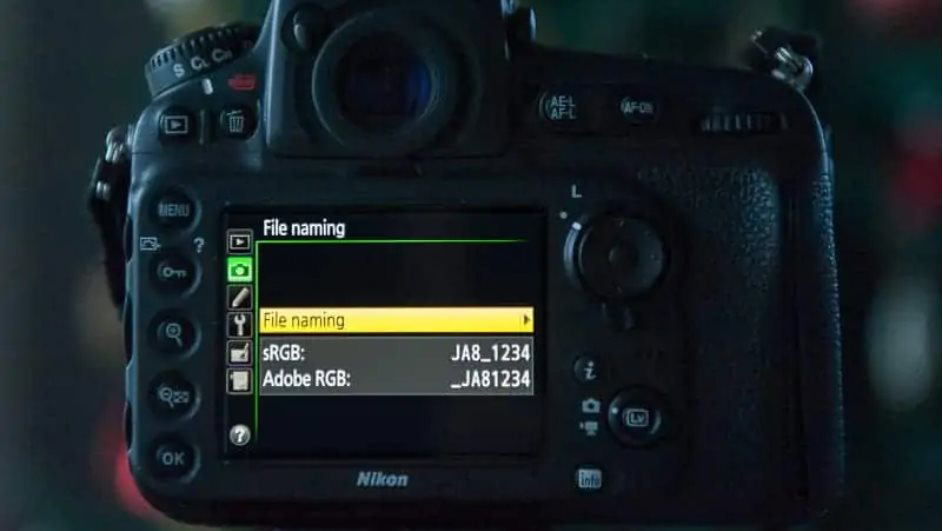
Many cameras allow you to customise the prefix used for image filenames and, importantly, keep the file numbering sequence running when you change memory cards.
It’s worth checking your camera’s menu and making sure continuous file numbering is enabled.
The exact menu options vary between manufacturers and models, so check your camera’s manual rather than following instructions designed for a particular camera.
You can also customise the filename prefix on many cameras. If you regularly use two cameras, giving each one a different prefix can make it much easier to identify where an image originated.
For example:
CJ1_4821.JPGCJ2_7394.JPG
The important thing isn’t the exact naming convention. It’s having a system that makes sense to you.
Create a consistent naming system
Once photographs have been imported and you’ve decided which images you want to keep, you can rename them using a consistent system.
One approach is to include:
- The date
- The client, subject or project
- A sequential image number
For example:
2026-09-16-Smith-Wedding-001.jpg
or:
2026-09-16-Smith-Wedding-002.jpg
This immediately tells you something about the photograph without having to open it.
You don’t necessarily need to put every piece of information into the filename. Lightroom and other photo-management applications can store much more detailed information using keywords and metadata.
The important thing is to choose a system and stick to it.
Keep the format consistent
Whatever naming system you choose, try to use the same format for every job.
For example, don’t have some files named:
SmithWedding1.jpg
others named:
Smith Wedding 001.jpg
and others:
IMG_4587.jpg
A consistent system makes files easier to sort, search and recognise when you’re working outside your photo software.
It’s also worth avoiding characters that can cause problems with different operating systems or applications. Simple combinations of letters, numbers, hyphens and underscores are generally easier to work with.
How to organise your photographs into folders
File names are only one part of the system. You also need a folder structure that makes sense.
A simple structure could look something like this:
Photography
├── 2026
│   ├── Weddings
│   │   ├── Smith Wedding
│   │   └── Jones Wedding
│   ├── Portraits
│   │   ├── Brown Family
│   │   └── Wilson Family
│   ├── Commercial
│   └── Personal
├── 2025
└── 2024
You can adapt this to your own photography.
If you’re a wedding photographer, you might organise primarily by year and wedding. If you’re a commercial photographer, client and project might be more useful. A landscape photographer might prefer year, location and project.
There isn’t one perfect folder structure.
The best system is the one that you can understand six months or six years from now.
Don’t make your folder structure too complicated
It’s easy to fall into the trap of trying to organise absolutely everything.
You might start with:
2026 → Commercial → Clients → Client Name → Project → Location → Date → Camera → Selects → Edited → Final → Web
Before long, you’ve created a filing system that’s almost as much work as the photography.
Keep it practical.
A few logical levels of folders are usually enough. Your photo-management software can handle much of the detailed searching for you.
One Lightroom catalogue or several?
If you use Lightroom Classic, you’ll also need to think about how you organise your catalogue.
There are different ways of approaching this. Some photographers create a new catalogue every year or even for different types of photography. Others keep everything in one master catalogue.
There is no rule that says one approach is correct.
A master catalogue can make it easier to search across your entire archive. Separate catalogues can make sense for photographers with genuinely separate businesses or very different workflows.
What matters most is understanding where your photographs and catalogue are stored and making sure both are backed up.
A useful starting point is to keep your folder structure relatively simple and let Lightroom’s catalogue do the more detailed organising.
Use keywords as well
Keywords are extremely useful when organising a large photography archive.
Imagine you’re looking for a photograph of a dog taken several years ago. If you’ve added appropriate keywords, you may be able to find it without remembering the exact folder or filename.
You could use keywords such as:
- Dog
- Labrador
- Outdoor
- Beach
- Family
- Wales
The advantage of keywords is that one photograph can belong to several searches without needing to exist in several folders.
That’s something a folder structure can’t easily do.
But that doesn’t mean folders are unnecessary.
A sensible folder structure tells you where the original file is stored, while keywords help you find photographs based on what they contain.
Both have a role.
What about collections and ratings?
If you’re using Lightroom Classic, you can also use ratings, flags, colour labels and collections to manage your working photographs.
For example, you might use:
- Flags to identify images you’ve selected
- Star ratings to mark your favourites
- Collections to gather photographs for a particular project
- Keywords to describe what’s in the photograph
- Folders to show where the original files are stored
The important distinction is that these tools don’t all do the same job.
Once you understand that, Lightroom becomes much easier to manage.
What if your photographs are already a complete mess?
Don’t panic.
If you’ve already got years of photographs spread across different hard drives with inconsistent filenames, you don’t have to reorganise everything in one weekend.
In fact, trying to do that can be a good way of giving up altogether.
Start from today.
Create a sensible system for all new work and use it consistently. Then gradually work backwards through your older photographs when you have the time.
You may also discover that some of your older photographs don’t need reorganising at all. If you know where they are, they’re backed up and you can find the important ones when necessary, sometimes leaving them alone is the most sensible option.
Learn from your own mistakes
One of the best ways to develop a filing system is to notice what causes problems in your own workflow.
For example, photographer Jane Allan learned the importance of file naming after photographing a wedding using two cameras.
When she started importing the photographs the following morning, she was presented with a warning about replacing an existing file.
Thankfully, she didn’t click through and overwrite anything, but it made her realise that relying on the default camera filenames wasn’t a good idea for her workflow.
That experience led her to develop her own naming system.
Her approach evolved over the years too. She tried different Lightroom catalogues and folder structures before eventually settling on a master catalogue, with folders organised by year and then divided into the different areas of her photography.
That’s an important lesson.
Your first filing system doesn’t have to be your final filing system.
As your photography changes, your organisation system can change with it.
Don’t forget your backups
A good filing system makes your photographs easier to find.
A backup system makes sure they’re still there when you need them.
Those are two different things.
Having your photographs on two hard drives sitting next to each other isn’t a complete backup strategy. If the computer or room is affected by theft, fire, flood or another problem, you could lose both copies.
Think about having multiple copies of your important photographs, with at least one copy stored somewhere separate from your main working system.
And don’t forget your Lightroom catalogue if you use Lightroom Classic. Your catalogue contains important information about your photographs, including edits, ratings, collections and other organisational information.
A simple photo organisation system
If you’re starting from scratch, don’t overthink it.
You could begin with something as simple as:
1. Import your photographs
Get them onto your main storage rather than leaving important images scattered across memory cards.
2. Keep only the photographs you need
Cull obvious mistakes and unwanted duplicates.
3. Rename important files
Use a consistent system that gives you useful information about the photograph.
4. Organise them into sensible folders
Year → type of photography → client or project is a good starting point for many photographers.
5. Add useful keywords
Use keywords where they will genuinely help you find photographs later.
6. Use Lightroom’s tools
Flags, ratings, collections and searches can help manage large numbers of images without creating endless folders.
7. Back everything up
Make sure your photographs and catalogue are protected against hardware failure and other problems.
The best filing system is the one you’ll actually use
It’s tempting to search for the perfect photo organisation system, but there isn’t one.
A wedding photographer working with thousands of images every week will have different requirements from someone photographing landscapes at weekends. A commercial photographer may need to organise around clients and projects, while someone photographing family life may care more about dates and locations.
Start with a structure that makes sense to you.
Use consistent filenames. Keep your folders logical. Make sensible use of keywords and your photo-management software. And, most importantly, make sure your photographs are backed up.
You don’t need a complicated system.
You just need one that means that when you need a photograph from five years ago, you know where to look.
And that’s when all that boring organisation suddenly becomes worthwhile.