AI Image Upscaling: How to Enlarge Low-Resolution Photos Without Losing Quality
We’ve all been there.
You find the perfect photograph, logo, screenshot or graphic for a project, only to discover that the original file is far too small.
Perhaps you’ve only been sent a 2,000-pixel image. Maybe the original photograph has been lost. Or perhaps a screenshot that looked perfectly readable on your monitor becomes almost impossible to read when placed into a printed magazine.
The obvious solution is to make the image larger.
The problem is that simply increasing the pixel dimensions doesn’t magically create more detail. Traditional image enlargement can make existing artefacts more obvious and leave small text, edges and fine detail looking soft.
This is where AI image upscaling can be useful.
AI upscaling software attempts to analyse an image and generate additional pixels based on what it believes should be there.
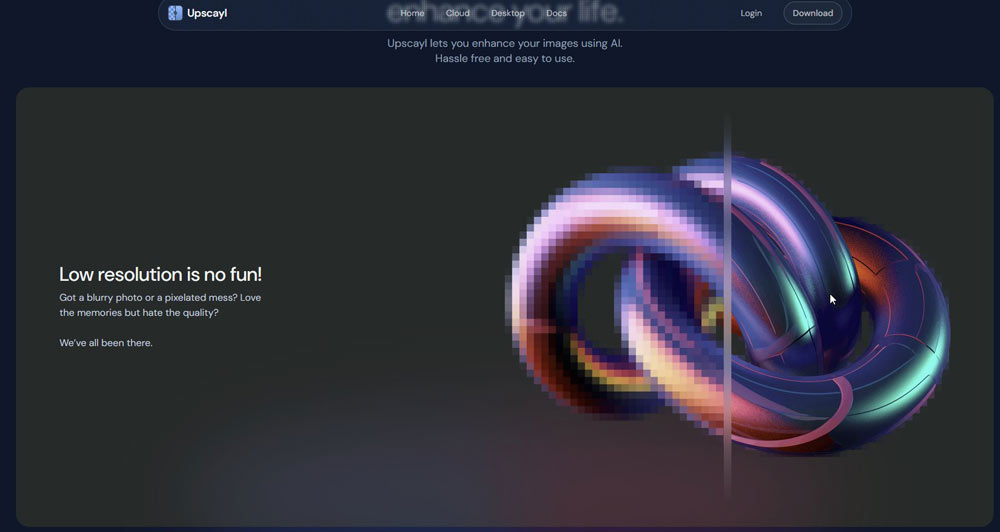
One application that caught our attention is Upscayl, an open-source AI image upscaling tool that can be used to enlarge low-resolution images.
But does it actually work?
What is AI image upscaling?
When you enlarge a digital image, you’re increasing the number of pixels used to represent it.
For example, a 1,000 × 1,000 pixel image contains one million pixels. Double its width and height and you need a 2,000 × 2,000 pixel image containing four million pixels.
The problem is that those additional three million pixels didn’t exist in the original.
Traditional resizing algorithms have to estimate what those pixels should look like based on the information that is already available.
AI upscaling takes a different approach.
Machine-learning models have been trained on large numbers of images and can attempt to recognise patterns, edges, textures and other visual information. They then generate additional detail that produces a larger image.
This can be particularly effective when the original image is very small.
But there’s an important distinction:
AI upscaling doesn’t recover information that was definitely present in the original file.
It generates a plausible interpretation of what that missing detail might have looked like.
For some images, that can be remarkably convincing.
For others, it can produce unwanted or inaccurate detail.
What is Upscayl?
Upscayl is an open-source image upscaling application designed to enlarge images using AI models.
It is available for Windows, macOS and Linux, and its interface is deliberately straightforward.
The basic workflow is simple:
- Import an image.
- Choose an AI model.
- Select the desired scale.
- Choose an output location.
- Start the upscaling process.
The software supports common image formats including PNG, JPEG and WebP.
That simplicity is one of its attractions.
You don’t need to be an expert in image processing to experiment with AI upscaling.
Why would a photographer need image upscaling?
Photographers might associate upscaling primarily with printing, but there are many other situations where it can be useful.
Printing
You may have an image that looks perfectly good on screen but doesn’t contain enough pixels for the size of print you want.
AI upscaling can potentially make a small original more suitable for larger reproduction.
Old photographs
Older photographs may only exist as small scans or low-resolution digital files.
Upscaling can sometimes make these files more useful for modern displays and printing.
Screenshots
This is an area where AI upscaling can be surprisingly useful.
If you’re producing a photography tutorial, book or magazine article, screenshots of software interfaces can become difficult to read when reproduced at print size.
A screenshot that looks perfectly clear on a high-resolution monitor can become tiny when placed on a printed page.
Increasing the size of the screenshot while retaining sharp edges and readable text can therefore be extremely useful.
Logos and graphics
Photographers and publishers sometimes receive logos or other graphics in files that are far too small for their intended use.
An AI upscaler can potentially rescue a small asset when a higher-resolution original isn’t available.
Putting Upscayl to the test
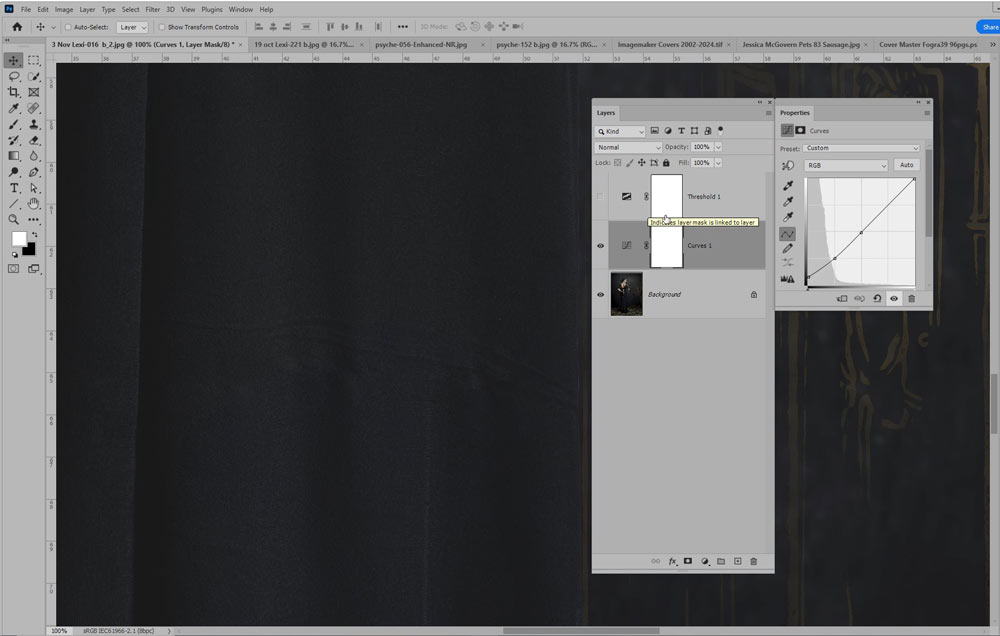
At Professional Imagemaker, we’ve encountered all of these problems.
One of the most common is the humble screenshot.
A software panel may occupy a reasonable area of a computer screen, but once that screenshot is placed into a printed publication, it can become surprisingly small.
We therefore tested Upscayl against conventional enlargement methods.
The results were interesting.
When a screenshot was enlarged using a traditional Photoshop method, existing pixel artefacts were largely preserved and enlarged along with the image.
Upscayl produced a noticeably different result.
The AI process attempted to clean up the artefacts while sharpening edges and improving the appearance of small text.
This is precisely the sort of situation where AI upscaling starts to make sense.
AI upscaling versus Photoshop
It’s tempting to assume that an AI tool will automatically outperform traditional image resizing.
That’s not necessarily the case.
In our testing, the biggest advantage of Upscayl appeared when working with small, low-resolution images where there simply wasn’t enough original information available.
For ordinary image resizing, Photoshop can still produce excellent results very quickly.
If you have a high-resolution photograph and simply need to increase its dimensions slightly for a particular output, a conventional resizing method may be all you need.
The more interesting question is what happens when the original image is genuinely too small.
That’s where AI has something different to offer.
How much can you enlarge an image?
There is no universal answer.
The amount you can successfully enlarge an image depends on:
- The original resolution
- Image quality
- Subject matter
- Fine detail
- Noise
- Compression artefacts
- The AI model being used
- Your computer hardware
- The intended output
A small portrait may respond very differently from a screenshot containing tiny text.
A landscape with relatively smooth areas may upscale successfully, while a highly detailed architectural photograph can expose weaknesses in the generated detail.
The best approach is therefore to test the image rather than assuming that a particular enlargement factor will always work.
Bigger isn’t always better
One of the most useful lessons from our testing was that you shouldn’t automatically upscale an image as far as the software allows.
AI upscaling can be computationally demanding, particularly with large files.
Increasing the linear dimensions dramatically can result in enormous files and lengthy processing times.
More importantly, the result isn’t necessarily better simply because it contains more pixels.
A sensible workflow is to decide how large the final image actually needs to be and upscale to that size.
If you’re preparing an image for a particular print size, work backwards from the required dimensions rather than simply selecting the biggest possible output.
AI upscaling can be surprisingly demanding
Upscaling a small image may be relatively straightforward, but processing larger photographs can place a significant load on your computer.
The graphics processor can make a major difference to processing times, particularly with AI-based applications.
During our testing, some larger enlargements took considerably longer than conventional Photoshop resizing.
This is another reason to think about the final output before beginning.
If you only need an image to be twice the size, there’s little point asking the software to create a much larger file and then reducing it again.
Where AI upscaling works best
Based on our testing, AI upscaling is particularly interesting when dealing with small, low-resolution originals.
This might include:
- Small photographs
- Low-resolution screenshots
- Software interface images
- Small logos
- Older digital images
- Images intended for print
- Graphics where the original high-resolution file is unavailable
These are the situations where simply increasing the image dimensions may not be enough.
AI has the opportunity to reconstruct edges and textures in a way that traditional resizing cannot.
Where traditional Photoshop resizing may still be better
AI isn’t automatically the best solution.
If you already have a reasonably large, high-quality photograph and only need a modest increase in dimensions, conventional Photoshop resizing can be extremely fast and effective.
This is an important point because AI tools can sometimes be promoted as though they should replace every traditional image-processing technique.
They shouldn’t.
The best tool depends on the problem you’re trying to solve.
For straightforward scaling, Photoshop may be perfectly adequate.
For a tiny image containing insufficient information, an AI upscaler may produce a more useful result.
Be careful with generated detail
There is another consideration when using AI image upscaling.
The additional detail is generated.
That means the software can sometimes make an educated guess that isn’t actually correct.
This matters particularly when the image contains faces, text, logos or other information where accuracy is important.
If you’re enlarging a photograph of a person, for example, examine the eyes, teeth, hair and facial features carefully.
If you’re enlarging text, check every character.
If you’re preparing a manufacturer’s logo for publication, compare the result against the original branding wherever possible.
Don’t assume that because an image looks sharper, it is necessarily more accurate.
AI upscaling for print
One of the most interesting applications for photographers is print.
A digital file that looks fine on a computer screen may not contain enough pixels for a large printed reproduction.
This can become particularly frustrating when preparing magazines, albums, exhibition prints or promotional material.
AI upscaling can potentially provide another option when the original high-resolution file cannot be obtained.
However, always judge the result at the actual intended print size.
A file containing thousands of additional pixels is not automatically a better print.
Resolution, viewing distance, sharpening, printing process and the quality of the original image all contribute to the final result.
A useful tool, but not a magic wand
The most important lesson from testing AI upscaling is that it isn’t magic.
A poor-quality photograph doesn’t suddenly become a perfect high-resolution original.
What AI can do is make an otherwise unusable or difficult file considerably more useful in certain circumstances.
That’s a meaningful distinction.
If someone sends you a tiny image and there is no possibility of obtaining the original, traditional resizing may leave you with an obvious low-resolution result.
An AI upscaler may be able to produce something much more convincing.
That’s where the technology earns its place.
Is Upscayl worth trying?
If you regularly work with low-resolution images, screenshots or graphics, Upscayl is certainly worth experimenting with.
Its open-source approach and straightforward interface make it accessible, and it provides an interesting demonstration of what AI image upscaling can achieve.
But don’t assume it will replace Photoshop.
For everyday resizing of good-quality photographs, traditional tools can still be extremely effective.
The real strength of AI upscaling is the difficult image — the one that is simply too small, too soft or too low-resolution for the job you need it to do.
That’s where it can turn an awkward problem into a workable solution.
Final thoughts
AI is increasingly finding useful applications in photography, and image upscaling is a good example.
It doesn’t replace the need for a good original photograph, nor does it magically restore information that was never captured.
But when you’re faced with a small image that would otherwise be unsuitable for print or another high-resolution application, AI upscaling can provide another option.
Our testing suggested that Upscayl’s particular strength was working with small, low-resolution images and screenshots, where its ability to generate and clean up additional detail could produce a more useful result than straightforward enlargement.
For ordinary scaling, Photoshop remains an excellent tool.
As with so many aspects of digital imaging, the trick isn’t to find the one tool that does everything.
It’s to understand the problem you’re trying to solve and choose the right tool for the job.
This article is based on testing originally published in Professional Imagemaker. Software features and performance can change as applications are updated, so results may vary depending on the version of the software, AI model, image and computer hardware used.