
Lightroom Classic Catalogues Explained: How to Organise, Back Up and Protect Your Photos
By Jane Allan
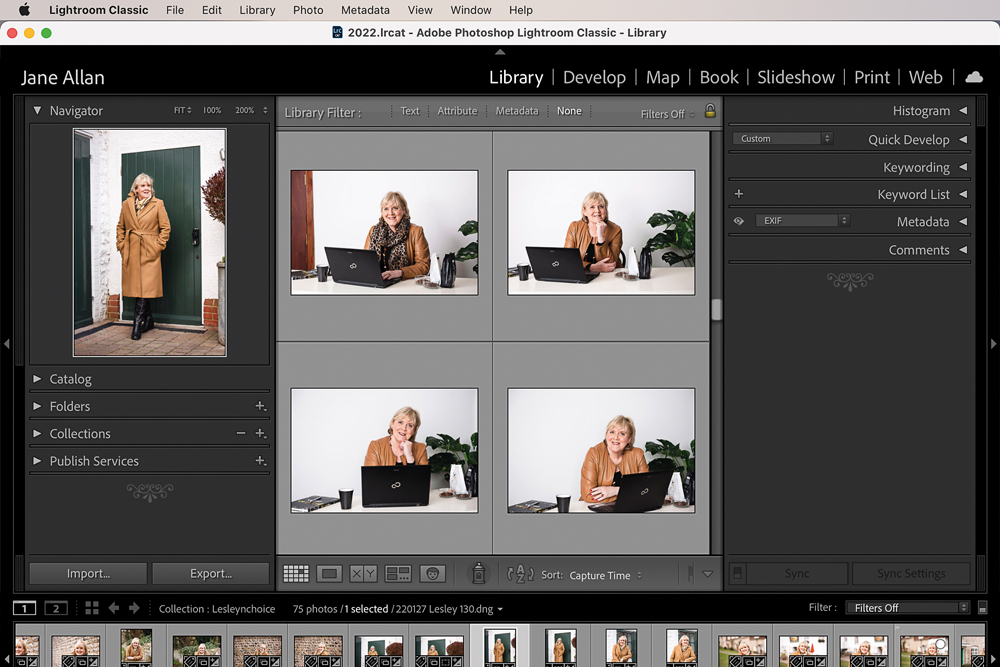
Organising photographs might not be the most exciting part of photography, but losing them is considerably less fun.
One of the things that can confuse photographers who are new to Adobe Lightroom Classic is the catalogue. It isn’t what you might initially expect.
The most important thing to understand is this:
Your Lightroom Classic catalogue is not your photographs.
The catalogue is a database that keeps track of your photographs, where they are stored, how you have organised them and the adjustments you have made to them.
Once you understand that distinction, Lightroom Classic becomes much easier to manage.
What is a Lightroom Classic catalogue?
A Lightroom Classic catalogue is essentially a database.
It records information about the photographs you have imported into Lightroom, including things such as:
- where the original photograph is stored
- ratings and flags
- keywords
- collections
- metadata
- editing adjustments
- cropping
- virtual copies
- development history
- other organisational information
The catalogue itself uses the .lrcat file extension.
Your original photographs remain separate files.
For example, you might have a RAW photograph stored in a folder such as:
Photos/2026/Weddings/Smith Wedding/
while your Lightroom catalogue might be stored somewhere completely different.
Lightroom simply keeps track of where that photograph is.
Lightroom Classic editing is non-destructive
Another important concept is that Lightroom Classic uses non-destructive editing.
When you adjust exposure, white balance, contrast, colour, cropping or other settings, Lightroom doesn’t normally overwrite the original RAW photograph.
Instead, the editing instructions are stored as part of the catalogue.
The original remains available, allowing you to return to the image and change the adjustments later.
Think of it as a recipe.
Your original RAW file is the set of ingredients and Lightroom stores the instructions describing how you want those ingredients processed.
When you export the photograph, Lightroom uses those instructions to create a finished image.
You might export a JPEG for a website, a TIFF for further editing or a file prepared for printing, depending on what you need the photograph for.
The exported file is separate from your original.
Your catalogue is not a backup of your photographs
This is probably the most important point in the entire article.
Backing up your Lightroom catalogue does not back up your photographs.
If your catalogue is backed up but the hard drive containing your RAW files fails, you still don’t have your photographs.
Likewise, if you have a perfect backup of all your RAW files but lose your catalogue, you still have the photographs, but you may lose Lightroom-specific information such as your catalogue organisation and adjustments that weren’t stored elsewhere.
A proper backup strategy therefore needs to protect both.
At a minimum, think about having:
- Your working photographs and catalogue
- A separate backup of your photographs
- A separate backup of your catalogue
Ideally, at least one backup should also be stored separately from your main computer or working drive.
Where should you store your Lightroom catalogue?
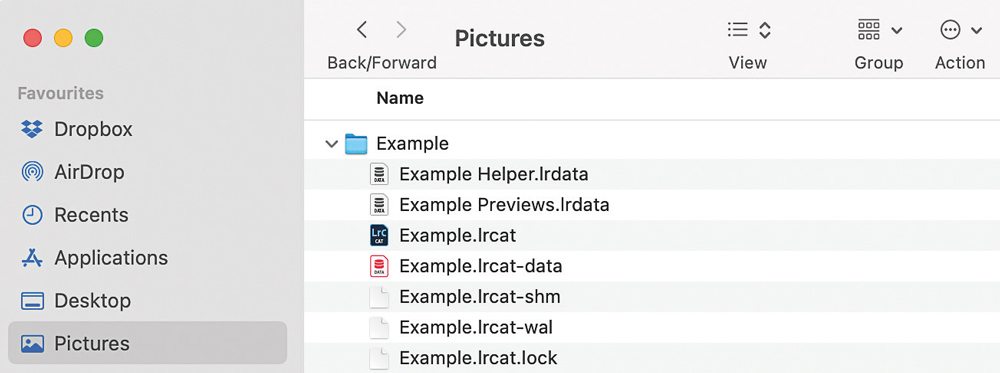
Lightroom Classic allows the catalogue to be stored in a location of your choice.
For many photographers, the simplest arrangement is to keep the catalogue on the computer’s internal drive.
Others may keep their catalogue on an external drive, particularly if they work across more than one computer or keep their photographs on external storage.
The important thing isn’t simply choosing the “right” location. It’s choosing a setup that fits the way you work and then making sure that the catalogue is properly backed up.
Internal drive
Keeping the catalogue on your computer’s internal SSD is a straightforward option and can offer good performance.
This can work particularly well if your photographs are also stored locally or on a fast connected drive.
The downside is that your catalogue is then dependent on that computer being available and healthy, so backups become particularly important.
External drive
You can also store a Lightroom Classic catalogue on an external drive.
This can make sense if you have a large photography archive or regularly move your working setup between computers.
However, an external drive is not automatically safer than an internal one.
It can still fail, be lost or be damaged.
If your catalogue is stored on an external drive, make sure it is backed up somewhere else.
How many Lightroom Classic catalogues should you have?
This is one of those Lightroom questions that can produce very different answers.
There isn’t a single number that is right for every photographer.
However, creating a completely separate catalogue for every shoot or client is usually unnecessary.
One of Lightroom Classic’s major strengths is its database functionality.
With a well-organised catalogue, you can search and filter photographs using:
- folders
- keywords
- ratings
- flags
- metadata
- collections
- dates
- other searchable information
If you create a new catalogue every time you photograph a client, you lose much of the benefit of having everything searchable from one place.
Imagine trying to find a particular photograph from five years ago when you have hundreds of individual catalogues.
You first have to work out which catalogue contains it.
With a well-managed catalogue, you can simply search your collection.
Should you have one catalogue or several?
For many photographers, one main catalogue is perfectly practical.
Modern versions of Lightroom Classic are designed to handle large catalogues, so there is no need to split your catalogue simply because you have accumulated a lot of photographs.
There are situations where multiple catalogues can make sense, though.
For example, you might have:
- a working catalogue for current projects
- a separate archive catalogue
- different catalogues for genuinely separate businesses or workflows
The important thing is to have a clear reason for splitting them.
Creating dozens of catalogues simply because you have photographed dozens of clients can make finding and managing your photographs harder rather than easier.
Keep your folder structure simple
Lightroom doesn’t replace the need for a sensible filing system.
Before importing thousands of photographs, think about how you want your original files to be organised on your storage drives.
A straightforward structure might be:
Photos
→ 2026
→ 2026-01-15 Client Name
→ 2026-02-03 Client Name
Or you might prefer a structure based around genres, clients or projects.
There isn’t one perfect filing system.
The important thing is that you can understand it several years from now.
Try not to create a complicated hierarchy that requires you to remember dozens of rules.
Don’t move photographs around outside Lightroom
Once photographs have been imported into Lightroom Classic, Lightroom needs to know where they are.
If you move or rename folders using Finder on a Mac or File Explorer on Windows, Lightroom may no longer be able to find them.
You’ll then see missing-folder or missing-photo indicators.
This doesn’t mean your photographs have been deleted. Lightroom has simply lost track of their location.
If you need to move photographs or folders that are already part of your catalogue, doing it from within Lightroom Classic is generally the safer approach because Lightroom can keep its database up to date.
Smart Previews can be useful
Smart Previews are smaller versions of your photographs that Lightroom Classic can use when the original files aren’t connected.
They can be particularly useful if your original photographs are stored on an external drive that you don’t always have with you.
For example, you could leave a large archive of RAW files at home while taking your laptop with you.
If Smart Previews have been created, Lightroom can allow you to continue working on compatible images without having the original drive connected.
When the original files become available again, Lightroom can reconnect the work with them.
Smart Previews aren’t a replacement for your original files or your backups, but they can be a very useful part of a mobile workflow.
What about previews?
Lightroom Classic creates previews so that it can display your photographs without repeatedly having to process the original file from scratch.
Different preview types are used for different purposes.
Standard previews are used for normal viewing, while 1:1 previews can be useful when you need to inspect an image at full size.
Building large numbers of 1:1 previews can take time and consume storage space, so there’s little benefit in keeping them forever if you don’t need them.
Lightroom Classic provides settings for managing how long 1:1 previews are retained.
Your own workflow should determine the best setting.
If you regularly zoom into images while editing, keeping 1:1 previews for a period may save time. If you rarely use them, allowing Lightroom to discard them can save storage.
How should you back up a Lightroom catalogue?
Lightroom Classic can create backups of your catalogue.
This is extremely useful, but remember what that backup contains.
It backs up the catalogue, not your original photographs.
When Lightroom prompts you to back up the catalogue, it is protecting the database that contains your organisational information and editing instructions.
You still need a separate backup system for the photographs themselves.
Don’t keep every catalogue backup forever
If Lightroom creates a new catalogue backup every time you close the application, the number of backup files can quickly grow.
You don’t necessarily need hundreds of old catalogue backups.
A sensible approach is to retain a number of recent backups rather than allowing them to consume your available storage indefinitely.
How many you keep depends on your workflow and how much storage you have.
More importantly, make sure the backups are actually stored somewhere that will remain available if your main drive fails.
Don’t keep your only backup beside your original
Imagine your catalogue is stored on an external drive.
Lightroom creates a catalogue backup on that same drive.
The drive fails.
You haven’t really achieved much.
You’ve lost the working catalogue and the backup together.
The same principle applies to your photographs.
A backup should provide protection against the failure or loss of the original.
That means keeping backup copies on a different physical storage device, and ideally having another copy in a different location.
Cloud backup can be useful here, provided you understand what service you are using and what it actually backs up.
A simple backup strategy
You don’t need an incredibly complicated system.
A useful starting point is the 3-2-1 approach:
- Keep at least three copies of important data
- Store those copies on at least two different types of storage or devices
- Keep at least one copy somewhere separate from your main working location
For a photographer, that could mean:
Working copy
Your main computer or working drive.
Local backup
A separate external drive containing copies of your photographs and catalogue.
Off-site backup
A cloud backup or another physical backup stored somewhere else.
The exact system will depend on the size of your archive, your budget and how important the photographs are to you.
But the principle is simple:
If one drive failing would destroy your photographs, you don’t have a backup strategy yet.
How to find your Lightroom catalogue
If you aren’t sure where your catalogue is stored, don’t panic.
The .lrcat file is the catalogue.
You can search your computer for files ending in:
.lrcat
You can also identify the active catalogue from within Lightroom Classic through its catalogue settings.
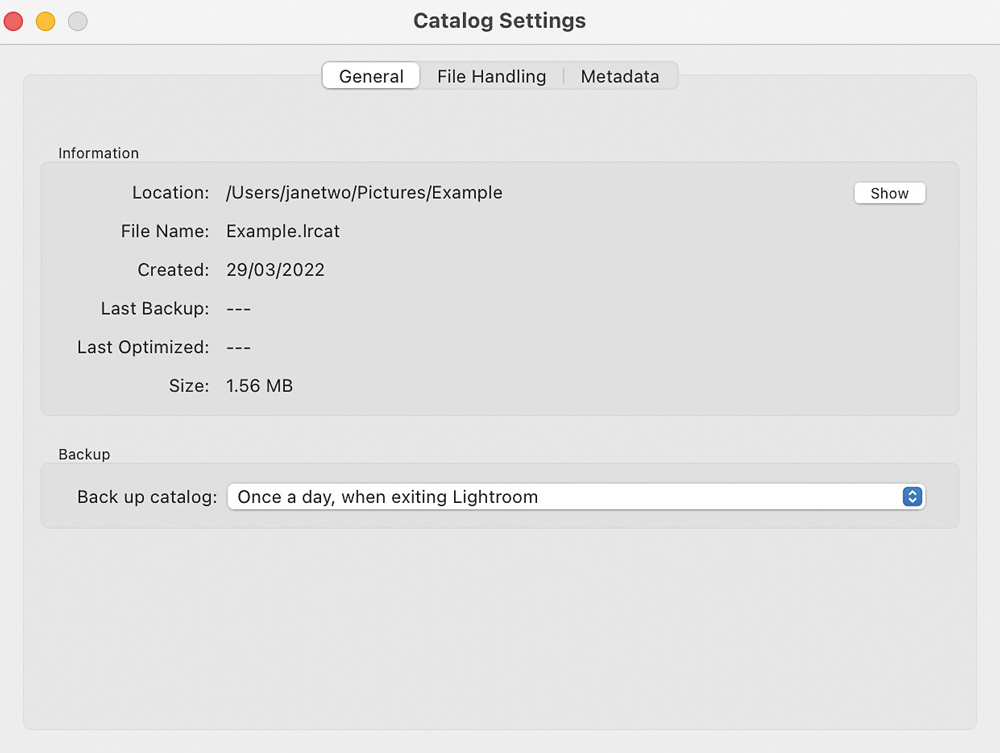
The exact appearance of the menus can change between Lightroom Classic versions, so if you’re following an older tutorial, don’t be surprised if the wording or location of an option looks slightly different.
The important thing is to identify the actual catalogue file you are using before moving, backing up or deleting anything.
Should you create a new catalogue every year?
You can, but you don’t have to.
Some photographers prefer a catalogue for each year because it gives them a clear working archive.
Others maintain one catalogue covering their entire photographic life.
Neither approach is automatically correct.
Before splitting your work into annual catalogues, ask yourself what problem you are solving.
If you’re creating a new catalogue because you like the simplicity of starting each year fresh, that’s a valid workflow.
If you’re doing it because you’ve heard that Lightroom cannot cope with a large catalogue, that may no longer be a particularly good reason.
For most photographers, the ability to search a well-organised catalogue across many years can be extremely valuable.
Don’t create a catalogue for every shoot
This is one piece of advice worth being particularly clear about.
Creating a new catalogue for every client or shoot might initially seem organised.
After all, everything relating to one job is in one place.
But imagine doing this for several hundred shoots.
You now have several hundred databases to manage, search and back up.
You’ve also lost one of Lightroom’s biggest advantages: being able to search your entire photographic archive.
A single, well-managed catalogue can often be much more useful.
Don’t throw away your RAW files
There is another dangerous workflow that photographers sometimes consider:
Shoot RAW → edit in Lightroom → export JPEGs → delete the RAW files.
Don’t do this simply to save space.
Your RAW files are your original captures.
The JPEG you export today might be perfect for today’s purpose, but you may want to process the photograph differently in the future.
Perhaps your editing skills improve. Perhaps you want a different crop. Perhaps you need a large print. Perhaps a client wants a different version.
Keeping the original gives you options.
Deleting it removes them.
Storage is relatively cheap compared with losing an irreplaceable photograph.
Lightroom is a database as well as an editor
It’s easy to think of Lightroom Classic simply as an alternative to Photoshop.
But one of its greatest strengths is actually its ability to organise and search a large photographic library.
Take advantage of that.
Use meaningful folders.
Add keywords where they are genuinely useful.
Use ratings and flags to identify strong images.
Create collections for projects or clients.
Don’t create a complicated system just because someone on a photography forum says you should.
Build a system that you can maintain.
A Lightroom catalogue should make your life easier
The best catalogue system is not necessarily the one with the most folders, keywords, catalogues and complicated rules.
It is the one that allows you to answer simple questions quickly.
Where is that photograph?
Which images from this shoot did I select?
Which photographs have I already edited?
Can I find every photograph of this subject from the last five years?
If my computer fails tomorrow, can I recover my work?
If your Lightroom setup can answer those questions, you’re doing something right.
Think about your catalogue before you need it
The worst time to discover that your catalogue and backup system doesn’t work is after a drive has failed.
Spend some time now working out:
- where your original photographs are stored
- where your Lightroom catalogue is stored
- how the catalogue is backed up
- how the original photographs are backed up
- where your off-site backup is
- how you would restore everything if your main computer or drive failed
Then test the backups.
A backup that has never been tested is really only a hope.
Lightroom Classic can do a lot to help you organise and protect your photographic workflow, but it can’t make decisions about your entire storage system for you.
The catalogue is the key to your Lightroom library.
Your photographs are the treasure.
Make sure you protect both.