
Best Computer and Monitor Setup for Photo Editing
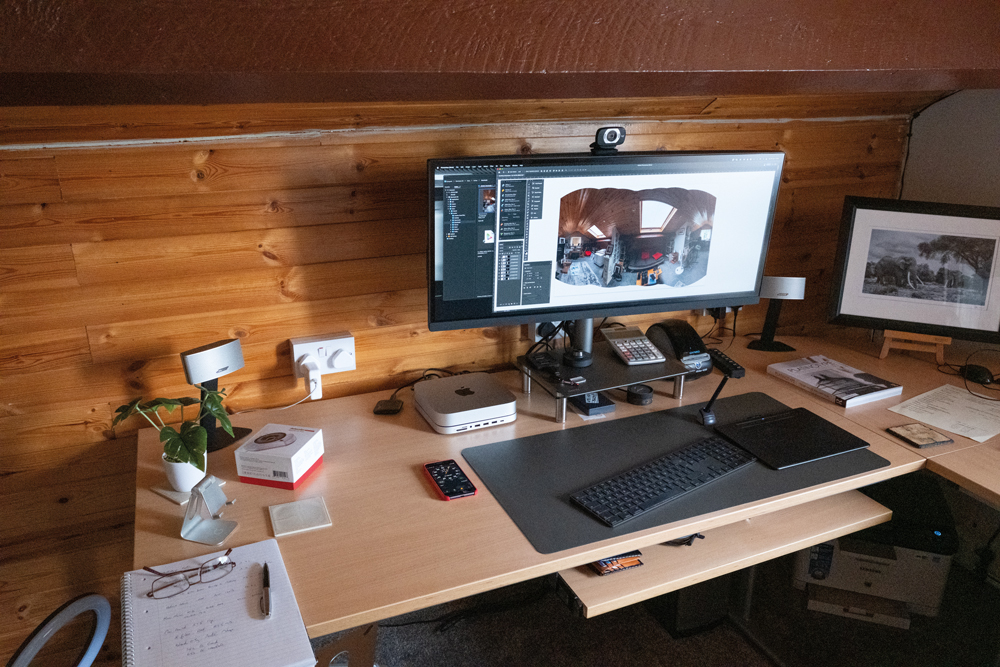
A good computer is an essential part of a modern photography workflow, but choosing the right system isn’t simply a question of buying the fastest processor or the most expensive graphics card.
For photographers, the monitor, colour accuracy, storage, memory and overall working environment can be just as important as raw processing power.
Whether you’re working in Adobe Photoshop, Lightroom, Capture One or another image-editing application, the ideal setup should make it easy to work with large files, display colour accurately and keep your workflow responsive.
So, what should photographers look for when building a photo-editing computer setup?
Start with the monitor
When choosing a computer for photography, it’s tempting to concentrate on the computer itself.
However, the monitor is arguably the most important part of the system because it is where you actually judge your photographs.
A powerful computer connected to a poor-quality display can still result in inaccurate colour decisions.
For photographers, a good monitor should provide:
- Accurate colour reproduction
- A wide colour gamut where appropriate
- Consistent brightness
- Good contrast
- High enough resolution for detailed image work
- Good screen uniformity
- Reliable calibration
- A comfortable physical size for extended editing sessions
For professional photographers who print their work, colour accuracy becomes particularly important.
A photograph can look excellent on screen but produce disappointing results when printed if the display is not showing colour accurately.
How much processing power do photographers need?
Photo-editing applications can make good use of modern processors, particularly when opening large files, applying complex adjustments, generating previews or performing computationally intensive operations.
However, there is an important distinction between having a fast computer and having a balanced computer.
A system with a very powerful processor but insufficient RAM or slow storage can still feel frustrating to use.
For most photographers, a sensible system should balance:
- CPU performance
- GPU capability
- RAM
- SSD storage
- Display capability
- Backup storage
The exact specification you need will depend on the type and volume of photography you undertake.
Someone editing occasional JPEGs has very different requirements from a professional photographer regularly processing hundreds of large RAW files.
RAM matters when working with large photographs
Modern cameras produce increasingly large image files.
A high-resolution RAW file can occupy a substantial amount of memory once opened and converted into a working document. Photoshop files containing multiple layers can become considerably larger again.
Having sufficient RAM allows your computer to keep more information readily available while you work.
For a photography workstation, it is generally better to have a comfortable amount of memory rather than specifying the minimum required by your software.
If you regularly work with very large files, panoramas, multiple applications or complex Photoshop documents, additional RAM can make a noticeable difference to the overall experience.
SSD storage makes a difference
Solid-state storage has become standard in modern computers, and it is particularly useful for photographers.
Your operating system, applications, catalogues and current image files can all benefit from fast storage.
A useful approach is to separate your workflow into different types of storage:
Working storage
Your current projects, catalogues and frequently accessed files.
Archive storage
Completed projects and photographs that you need to retain but don’t access every day.
Backup storage
Independent copies of important photographs and working files.
Fast internal SSD storage is excellent for active projects, but it should not be considered a substitute for a proper backup system.
Do photographers need a powerful graphics card?
The answer depends on how you work.
Modern image-editing software increasingly makes use of GPU acceleration for particular operations, but not every photography workflow requires a high-end graphics card.
For many photographers, spending excessively on a gaming-oriented GPU may provide less practical benefit than investing in additional RAM, faster storage or a better monitor.
If your work includes video editing, 3D applications or particularly demanding GPU-accelerated effects, the balance changes and a more powerful graphics solution may be worthwhile.
The important thing is to build a system around the applications and tasks you actually use.
Colour gamut: sRGB, Adobe RGB and Display P3
Colour gamut describes the range of colours a display can reproduce.
You’ll commonly encounter terms such as:
- sRGB
- Adobe RGB
- Display P3
- DCI-P3
For general web photography, sRGB remains extremely important because it is widely used across browsers, websites and consumer displays.
For photographers producing work for print or colour-critical applications, a wider-gamut display can provide access to colours outside the sRGB colour space.
However, a wide gamut alone does not make a monitor colour accurate.
A display can cover a large colour space while still reproducing individual colours inaccurately.
This is why gamut coverage and colour accuracy need to be considered together.
What is Delta E?
When researching colour-accurate monitors, photographers may encounter Delta E (ΔE).
Delta E is a measurement used to describe the difference between two colours.
In simple terms, a smaller Delta E value indicates that the displayed colour is closer to the reference colour.
Monitor manufacturers often quote Delta E figures for factory calibration, but photographers should remember that specifications alone don’t tell the whole story.
Real-world performance can also depend on calibration, the viewing environment, screen uniformity and how the monitor is being used.
Why photographers should calibrate their monitors
Even an excellent monitor can benefit from calibration.
A monitor calibrator measures how the display is actually behaving and creates an ICC profile that allows the computer and colour-managed applications to compensate for its characteristics.
This is particularly important if you:
- Print your photographs
- Sell photographic artwork
- Produce images for commercial clients
- Work to colour-critical standards
- Use multiple monitors
- Need consistent colour between devices
A visual comparison between an uncalibrated and calibrated monitor can be useful, but it isn’t a reliable scientific measurement of accuracy.
For meaningful colour management, you need a measurement device and appropriate profiling software.
Dual-monitor setups for photographers
A second monitor can be extremely useful for photographers.
Rather than using the entire screen for the photograph, you can dedicate additional screen space to:
- Photoshop panels
- Lightroom controls
- File browsers
- Reference images
- Web browsers
- Metadata
- Other applications
This can leave the main display relatively uncluttered for the photograph itself.
There is no universally correct monitor arrangement. Some photographers prefer one large ultra-wide display, while others find two separate screens more comfortable.
The important consideration is ergonomics.
A very wide display can mean moving your head and eyes considerable distances to reach information at the edges. Two appropriately positioned displays can sometimes provide a more comfortable working arrangement.
Should both monitors be identical?
If colour consistency between two screens is important, using identical monitors can make life considerably easier.
Different displays can use different panel technologies, backlights and colour characteristics.
Even when both monitors have impressive specifications, they may not look identical.
Calibration and monitor-matching tools can help, but buying two matching displays from the outset is often the simplest solution.
If one screen is used for critical image editing and the other mainly displays palettes and applications, the secondary display does not necessarily need to be the same specification.
Don’t forget your viewing environment
Monitor calibration cannot compensate for every problem in your working environment.
The light around your monitor affects how you perceive colour and brightness.
A bright window behind or beside your display, coloured walls or strong room lighting can all influence your perception of an image.
For critical work, a controlled and neutral viewing environment is preferable.
Avoid positioning your monitor where direct sunlight or strong artificial lighting falls onto the screen.
Monitor hoods can help
A monitor hood can reduce the amount of stray light reaching the screen and can make it easier to concentrate on the display.
This can be particularly useful in a bright room.
For photographers working with multiple displays, physical positioning and screen hoods can also help reduce reflections and improve consistency between the screens.
A small computer can still be a powerful photography workstation
Modern computer design means that a physically small computer can provide substantial processing performance.
Compact systems can be particularly attractive to photographers because the computer itself takes up relatively little desk space, leaving more room for monitors, storage devices, card readers and other equipment.
However, remember that a small computer may require external accessories such as:
- Keyboard
- Mouse or graphics tablet
- External storage
- Card reader
- USB hub or docking station
- One or more monitors
The computer may be small, but the complete photography workstation can still occupy considerable desk space.
Don’t spend everything on the computer
One of the most important lessons when building a photography workstation is to consider the whole system.
A sensible budget might need to cover:
Computer + monitor + calibration + storage + backup + accessories
It is easy to spend a large proportion of the budget on the computer and then compromise on the monitor.
For photographers, that can be the wrong priority.
If you are choosing between a slightly faster computer and a significantly better colour-accurate monitor, the monitor may provide the more meaningful improvement to your photographic workflow.
What about a Mac or Windows PC?
Both platforms can provide excellent photography workstations.
The choice often comes down to personal preference, existing equipment, software requirements and budget rather than one platform being universally better for photographers.
A modern Apple Silicon Mac, Windows PC or laptop can provide excellent performance for image editing.
Rather than choosing a computer purely because it is marketed towards photographers, consider the applications you use, the size of your image files and how long you expect the system to remain useful.
The ideal photography workstation
There is no single specification that is perfect for every photographer.
A professional commercial photographer working with enormous layered Photoshop files may need a substantially more powerful system than someone editing family photographs.
However, the principles remain the same.
Look for a balanced system with:
- A modern, capable processor
- Sufficient RAM for your image files and workflow
- Fast SSD storage
- Appropriate GPU performance
- A high-quality colour-accurate monitor
- Hardware calibration
- Reliable backup storage
- A comfortable ergonomic workspace
Most importantly, don’t forget that the computer is only one part of the photographic workflow.
The monitor is where you make your visual decisions, calibration helps ensure those decisions are based on accurate colour, and a sensible storage and backup strategy protects the photographs you’ve spent so much time creating.
Final thoughts
The fastest computer isn’t necessarily the best computer for a photographer.
A well-balanced photography workstation should make your software responsive, your files easy to manage and your images easy to judge accurately.
If you are upgrading your editing setup, start by considering what is currently slowing you down.
Is Photoshop struggling with large files? Are you constantly running out of RAM? Is your storage too slow? Are you struggling to see enough of your image? Or are your prints not matching your monitor?
Answer those questions first.
Then spend your budget where it will make the biggest practical difference.
For photographers, a great computer paired with a poor monitor is still a poor editing system.
And if colour accuracy matters to your work, a good monitor and reliable calibration should be considered essential parts of the workstation rather than optional extras.