
Affinity Photo Review: A Powerful Alternative to Adobe
For photographers looking for an alternative to Adobe’s Creative Cloud, the Affinity suite has become an increasingly interesting option.
Affinity combines three major creative applications: Affinity Photo for image editing, Affinity Designer for vector graphics and Affinity Publisher for page layout.
The applications are closely integrated, allowing users to move between different types of creative work without necessarily leaving the Affinity environment.
Professional Imagemaker has been using the software extensively, and the 2.5.3 update introduced a number of useful improvements across the suite.
What is Affinity?
Affinity is a suite of creative applications designed to cover three major areas of digital production:
- Affinity Photo – image editing and RAW processing
- Affinity Designer – vector graphics and illustration
- Affinity Publisher – page layout and publishing
For photographers, Affinity Photo is the obvious starting point, but the integration between the applications can be particularly useful for anyone who produces brochures, albums, marketing materials, magazines or other photographic publications.
The ability to combine raster editing, vector graphics and page layout within one ecosystem is one of the suite’s major strengths.
Affinity Photo for photographers
Affinity Photo provides many of the tools photographers expect from a professional image-editing application.
It can be used for RAW processing, retouching, compositing, colour adjustments and creative image manipulation.
The wider Affinity ecosystem also makes it possible to move between photography, graphic design and page layout when a project requires more than simply editing an image.
For photographers who produce their own promotional materials, social media graphics, brochures or printed work, that flexibility can be valuable.
Affinity’s integration between applications
One of the strengths of the Affinity suite is the way the applications work together.
Rather than treating Photo, Designer and Publisher as completely separate programs, Affinity allows users to access tools from the other applications through its Persona system.
For example, a Publisher project can make use of Designer tools without requiring the user to completely abandon the document and start working in another application.
This is particularly useful when creating publications containing photography, graphics and text.
Variable fonts in Affinity
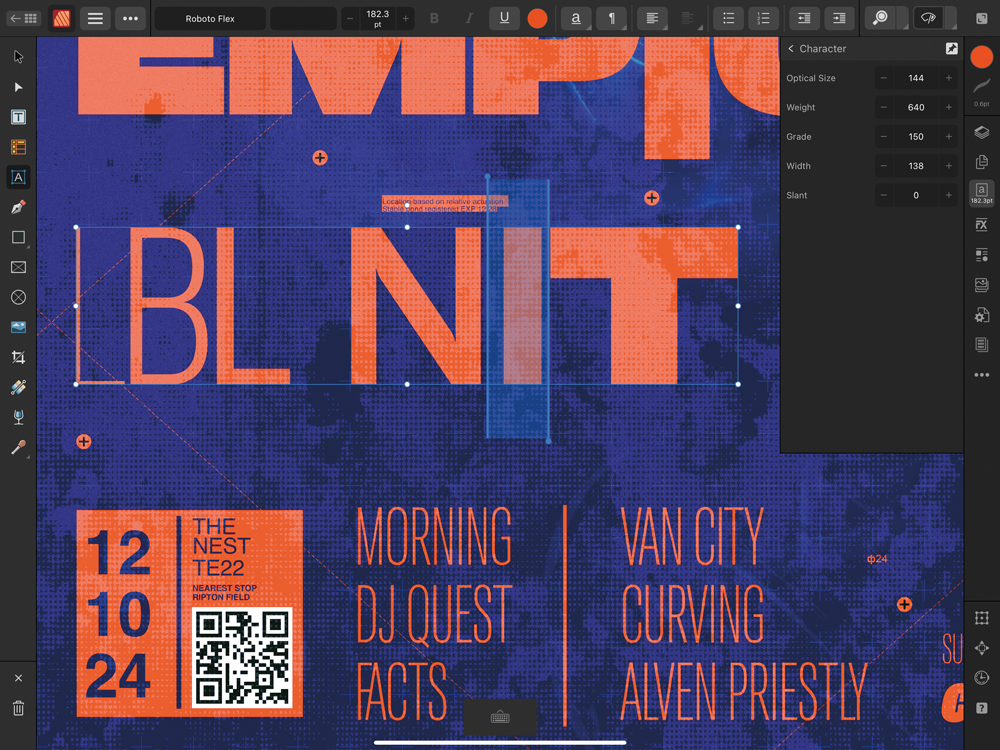
One of the significant improvements introduced during the 2.5 release cycle was support for variable fonts.
Variable fonts allow a single font file to contain a range of variations rather than requiring a separate font file for every possible style.
Depending on the font, this can include controls for:
- Weight
- Width
- Slant
- Optical size
- Grade
Some fonts provide additional parameters beyond these standard controls.
This gives designers considerable flexibility when creating typography, logos and other graphic elements.
Variable fonts and PDF export
When a document containing a variable font is exported to PDF, the variable font settings need to be represented appropriately because PDF workflows do not simply preserve every variable-font characteristic in its original editable form.
Affinity handles this by creating a static instance of the variable font with the selected settings.
For most users, this should happen behind the scenes, allowing the typography to retain the chosen appearance when exported.
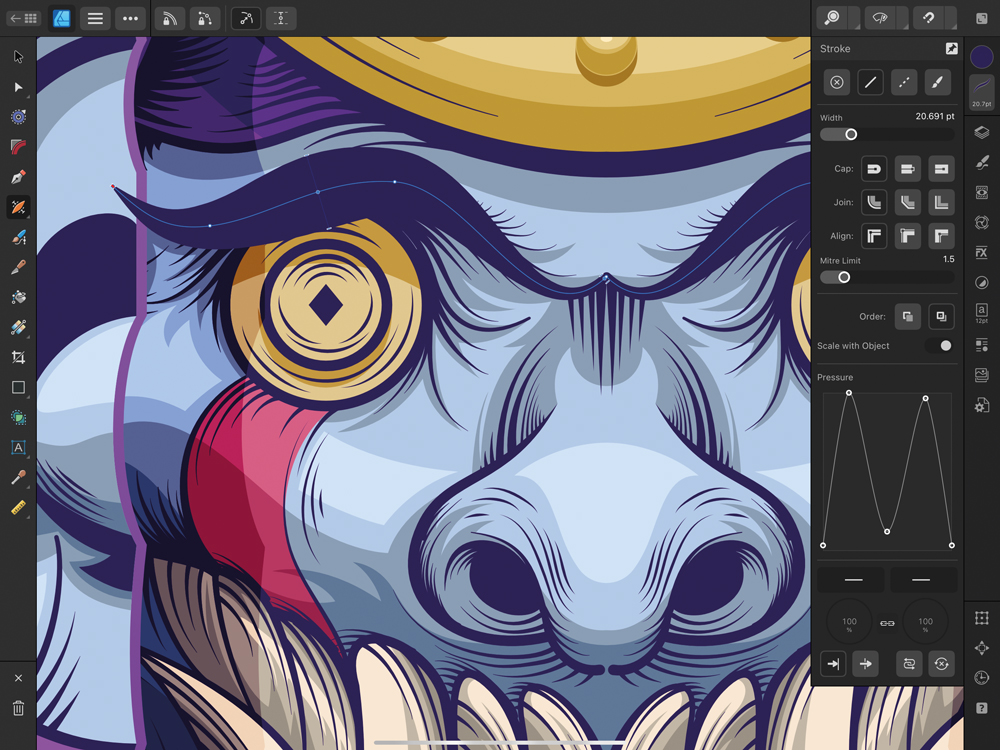
The Stroke Width Tool in Affinity Designer
Affinity Designer also gained a useful Stroke Width Tool.
The tool allows users to adjust the width of a curve at different points, creating a more customised stroke profile.
Instead of applying the same width along an entire line, individual points can be adjusted to create a changing pressure effect.
This can be useful for illustration, logos and decorative graphic elements.
The tool provides control over individual pressure points, allowing them to be moved, adjusted, added or removed.
Options include locking the overall line weight, controlling point ordering and snapping width points to other parts of the curve.
Although this is primarily a Designer feature, the integration between the Affinity applications means it can be useful within wider design and publishing workflows.
Improved Pencil Tool
The Pencil Tool also received improvements during the 2.5 release cycle.
A revised curve-smoothing algorithm produces smoother results, while changes to the automatic closing function make it easier to control when a drawn curve should close.
An indicator shows when the cursor is close enough to the starting point for the curve to be automatically closed.
For users who draw freehand paths, these may seem like relatively small changes, but they can make everyday drawing more predictable.
Create QR codes directly in Affinity
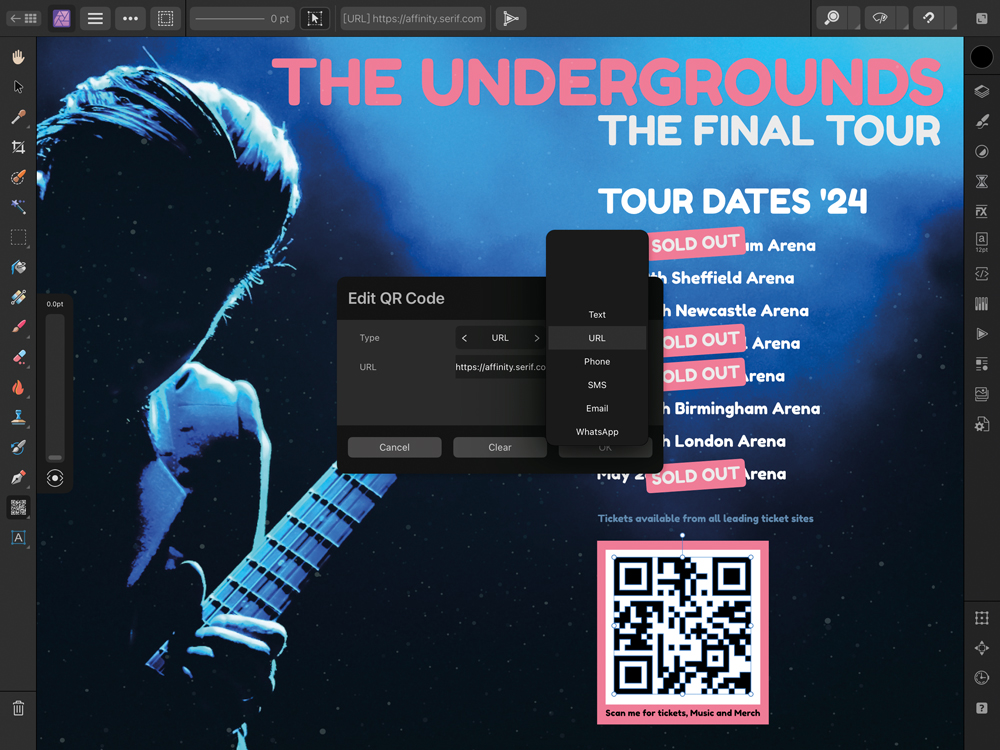
Another useful addition is the QR Code Tool.
QR codes can be created directly within Affinity Designer and used in documents such as brochures, posters, business cards and promotional materials.
Depending on the selected data type, QR codes can contain information such as:
- Web addresses
- Telephone numbers
- SMS messages
- Email addresses
- WhatsApp links
- Locations
- Wi-Fi information
- vCards
- Plain text
This can be particularly useful for photographers producing printed marketing materials.
A photographer could, for example, include a QR code on a business card linking directly to their website, portfolio or booking page.
Custom grid settings
Affinity’s grid and axis tools provide extensive control over document layouts.
The 2.5 updates introduced the ability to save grid settings as the default for new documents.
This can be useful for designers who regularly work with the same layout requirements.
Grid settings can also be used across different parts of the Affinity workflow, making them useful for both design and page-layout projects.
Typography controls
The typography interface was also changed during the 2.5 release cycle, with the typography controls becoming a panel rather than a traditional pop-up dialogue.
This means the panel can remain open while working and can be docked into the workspace.
For anyone doing extensive typography or page-layout work, keeping these controls readily accessible can make the workflow more efficient.
RAW camera support
Affinity’s RAW workflow relies on LibRaw, and updates to the underlying RAW support can add compatibility with newer cameras.
The 2.5.3 update, for example, included support or improvements for cameras including:
- Fujifilm X100VI
- Leica SL3
- Pentax KF
- Samsung Galaxy S23+
- Samsung Galaxy S23 Ultra
- Sony A9 III
Camera support is particularly important when choosing RAW-processing software, so photographers should always check current compatibility before purchasing or committing to a particular workflow.
Affinity Designer and DWG files
Affinity Designer and Publisher also received improvements to DWG polyline importing.
This is more relevant to professional design and technical workflows than everyday photography, but it demonstrates the breadth of the Affinity suite.
The improvements simplify imported curves and can be useful for users moving artwork or technical drawings between AutoCAD and Affinity applications.
Affinity Photo vs Adobe Photoshop
For photographers considering moving away from Adobe, the obvious comparison is Affinity Photo versus Photoshop.
Both provide sophisticated image-editing capabilities, but they take somewhat different approaches.
Affinity’s appeal includes its integrated suite of Photo, Designer and Publisher applications and its alternative approach to software licensing.
Adobe, meanwhile, offers a much larger ecosystem of applications and services, together with tools that have become deeply embedded in many professional workflows.
The right choice therefore depends on what you actually need from your software.
If you primarily need advanced photo editing, Affinity Photo may provide everything you require.
If you work extensively with other Adobe applications or depend on particular professional workflows, plugins or features, moving away from Adobe may require more consideration.
Is Affinity Photo good for photographers?
For many photographers, yes.
Affinity Photo provides a powerful collection of editing tools without requiring you to use the entire Adobe ecosystem.
It is particularly interesting for photographers who want to combine image editing with graphic design and page layout.
Someone producing their own marketing materials, albums, brochures or publications could potentially use all three Affinity applications within the same workflow.
However, photographers should consider their own requirements before switching.
If you rely heavily on a particular application, plugin, asset-management system or professional workflow, check that Affinity provides a suitable replacement before making the move.
What is missing from an Affinity workflow?
One area that photographers have historically needed to consider is asset management.
An image editor and a photo library serve different purposes.
An editor allows you to manipulate individual photographs, while an asset-management system helps you organise, catalogue, search and manage a large image collection.
Photographers with extensive libraries should therefore consider how Affinity fits into their existing image-management workflow rather than looking at the editing application in isolation.
Should photographers switch to Affinity?
There is no single answer.
The best software is the software that fits your workflow.
Affinity’s combination of raster editing, vector design and page layout makes it an attractive option for photographers who want to take greater control of their creative production.
The suite is particularly interesting if you regularly move between photographs, graphics and documents.
For photographers considering an alternative to Adobe, Affinity is certainly worth investigating.
Before making a permanent switch, however, test the software using the types of files and projects you work with regularly.
Check RAW compatibility, colour management, printing, file exchange, plugins and any other features that are essential to your workflow.
Final thoughts
The Affinity suite has developed into a capable collection of creative tools covering photography, graphic design and publishing.
For photographers, Affinity Photo provides the core image-editing functionality, while Designer and Publisher extend the workflow into vector graphics and page layout.
The 2.5 updates introduced a range of useful improvements, including variable fonts, the Stroke Width Tool, Pencil Tool improvements, QR code creation and enhanced workflow features.
Rather than simply being an alternative image editor, Affinity’s greatest strength may be the fact that the three applications work together.
For photographers who want to edit photographs, create graphics and produce finished publications without moving between several unrelated applications, that integrated approach can be compelling.
This article is adapted and substantially rewritten from material originally published in Professional Imagemaker. Features discussed relate to the Affinity 2.5 release cycle and should be checked against the current version before publication