How to Organise Your Photography Archive: Metadata, Contact Sheets and File Management
For a professional photographer, taking the photographs is only part of the job. Knowing where those photographs are months or even years later can be just as important.
A shoot may contain hundreds or thousands of images. Some will be delivered to a client immediately, while others may need to be found again years later for licensing, additional artwork, editorial use, commercial records or legal purposes.
A photograph that cannot be found might as well not exist.
A good image-management system therefore needs to do more than simply store files. It should make photographs easy to identify, search, retrieve and present.
For photographers working on long-running commercial, architectural, editorial or documentary projects, this becomes particularly important.
Why photography file management matters
A simple folder containing a client’s name and the date may be perfectly adequate for a small portrait or family shoot.
However, imagine photographing the construction of a major building over two years.
There could be thousands of photographs covering different floors, rooms, contractors, stages of construction and dates. Several different projects may be running simultaneously, and the same photographer may return to the same location dozens of times.
A filename such as:
IMG_4837.RAW
tells you very little.
A properly organised archive can tell you much more:
- Which client commissioned the work?
- Which project does the photograph belong to?
- When was it taken?
- Where was it taken?
- What does it show?
- Who created it?
- What rights apply to the image?
- Has the image been edited?
- Which version was supplied to the client?
The more important the photographs become, the more important this information becomes.
Start with a consistent folder structure
There is no single folder structure that is perfect for every photographer, but consistency is more important than complexity.
For example, a commercial photographer might organise projects using something like:
Client → Project → Date → Shoot → Images
Or:
Year → Client → Project → Shoot
The exact structure matters less than being able to apply it consistently.
Avoid creating a different system for every client. If you know exactly where to look for photographs regardless of who commissioned the work, your archive becomes much easier to manage.
For long-term projects, consider including information such as:
- Client
- Project name
- Project number
- Location
- Shoot date
- Photographer
- Image status
- Delivery status
- Usage or licensing information
Your folder structure should support your workflow rather than replace it.
Use meaningful filenames
Modern cameras create perfectly usable filenames, but sequences such as DSC_4821, IMG_7318 and 00012345 are not particularly useful when viewed outside your catalogue or editing application.
A consistent naming convention can make files much easier to identify.
For example:
Client_Project_2026-09-08_001.jpg
or:
JonesArchitects_CentrePoint_2026-09-08_001.jpg
You do not necessarily need to put every piece of information into the filename. Metadata and your folder structure can contain much more detail.
The important thing is that your filenames are predictable.
Metadata: information attached to the photograph
Metadata is information about a file or the image it contains.
Some metadata is created automatically by the camera. Depending on the camera and file format, this may include information such as:
- Camera model
- Lens
- Aperture
- Shutter speed
- ISO
- Date and time
- Focal length
Other information can be added by the photographer.
This can include:
- Creator
- Copyright
- Client
- Location
- Description
- Headline
- Keywords
- Job or project number
- Usage information
- Contact details
- Instructions
This additional information can become extremely valuable when searching a large archive.
Add metadata as early as possible
Metadata is most useful when it becomes part of your workflow rather than something you try to add years later.
Create metadata templates for your regular clients or types of work.
For example, a commercial photographer might have a template containing their:
- Name
- Business name
- Website
- Copyright notice
- Contact information
- Rights information
A client-specific template could then add the project name, job number and other relevant information.
Adding common information in batches saves time and reduces the risk of forgetting it.
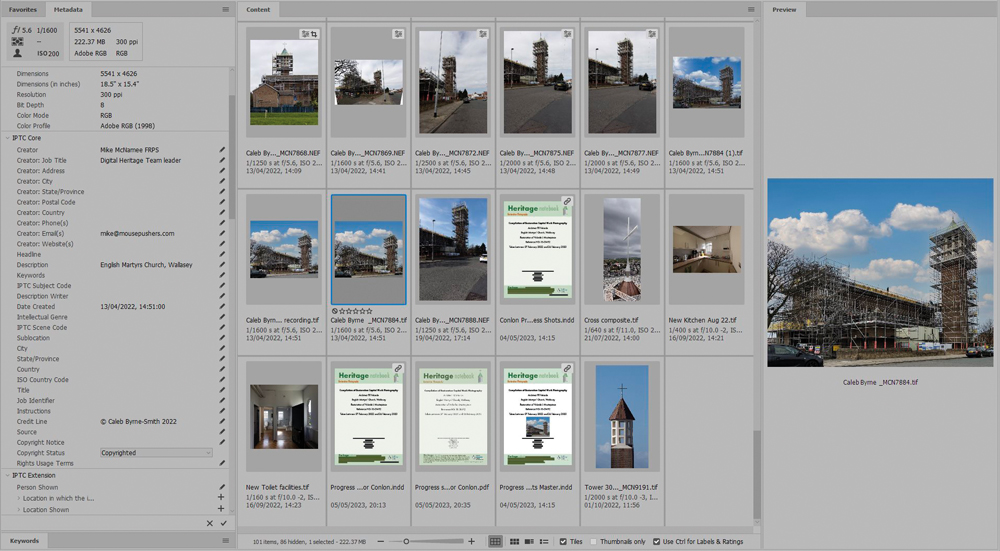
Adobe Bridge, Lightroom Classic and other image-management applications can be used to view and manage metadata. Adobe Bridge also provides tools for applying information across groups of images.
Keywords make large archives searchable
Keywords can be particularly valuable when you have accumulated many years of work.
Imagine an architectural photographer has 100,000 images.
Searching by filename alone would be hopeless.
Instead, an image might contain keywords such as:
office, architecture, concrete, staircase, interior, construction, London, commercial, exterior
A future search for “staircase” could then identify relevant photographs from multiple projects.
Think about the terms that someone might use when trying to find the photograph in the future.
Don’t add hundreds of meaningless keywords simply because you can. A smaller, consistent vocabulary is usually much more useful.
Keep original files and edited versions identifiable
Professional archives often contain several versions of the same photograph.
For example:
- Original RAW file
- Master edited file
- Retouched version
- Web-resolution JPEG
- High-resolution TIFF
- Client delivery JPEG
These should not become confused.
Use clearly named folders, filenames, collections or other organisational methods to distinguish working files from final deliverables.
For important projects, consider maintaining a simple record of which version was supplied to the client and when.
This becomes particularly useful when an old project suddenly comes back to life.
Record important edits
Editing can introduce another layer of information that future users may need to understand.
Imagine an architectural photograph has had a lamp post, cable or temporary structure digitally removed.
Someone looking at the finished image years later may assume that the scene genuinely looked that way.
In some circumstances, that could matter.
For commercial, architectural, documentary or evidential work, consider keeping an appropriate record of significant alterations.
That does not mean documenting every minor exposure or colour adjustment. It means recognising when an alteration changes the information conveyed by the photograph.
A useful principle is:
The more important the photograph’s documentary value, the more important its editing history becomes.
Contact sheets: one of the most useful tools in a professional archive
A contact sheet is a collection of photographs presented together on one or more pages, usually with identifying information such as filenames, captions or image numbers.
They are useful for much more than reviewing a shoot.
A well-designed contact sheet can become a visual index of an entire project.
It can help a client:
- Review photographs quickly
- Identify preferred images
- Discuss images with colleagues
- Reference particular files
- Select photographs for publication
- Present a project internally
- Keep a visual record of work completed
For the photographer, it can also become a powerful presentation and marketing tool.
A professional-looking contact sheet says something about the professionalism of the photographer who created it.
Make contact sheets useful, not just attractive
A contact sheet should allow somebody to identify an image quickly.
Depending on the purpose, useful information might include:
- Filename
- Image number
- Caption
- Date
- Project name
- Photographer
- Copyright
- Client
- Location
- Keywords
Don’t overload the page with information.
The best contact sheet balances visual presentation with practical identification.
If a client phones you six months later and says, “We need photograph 37 from that construction project”, the sheet should make it easy to work out exactly which file they mean.
Contact sheets can also be part of your sales process
A contact sheet does not have to look like an internal technical document.
For commercial and editorial photographers, it can be branded with:
- Your logo
- Contact details
- Project title
- Client name
- Page numbers
- Copyright information
- Consistent typography
It can therefore become both a record of the work and a subtle reminder of your services.
A client who receives a polished presentation of a project may also be more likely to remember you when the next commission comes up.
Creating contact sheets in Adobe Bridge
Adobe Bridge remains particularly useful for photographers who work with large collections of files.
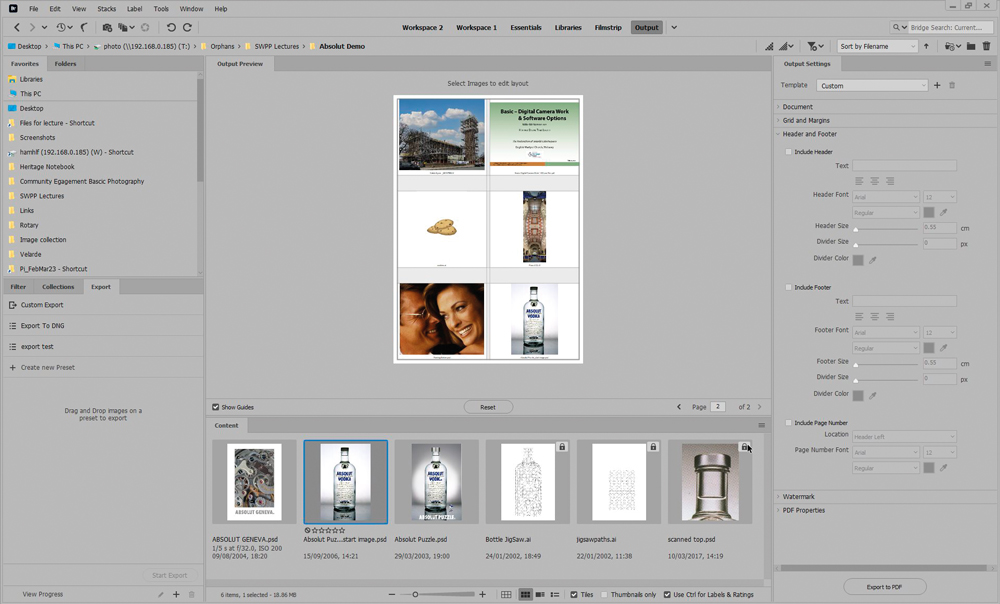
Current versions of Bridge include a dedicated Output workspace for creating PDF contact sheets.
You can select images and arrange them into rows and columns, then customise settings such as:
- Document size
- Grid
- Margins
- Header and footer
- Watermark
- PDF properties
You can also save custom templates for repeated use.
This makes Bridge a useful option when you want to create a straightforward PDF contact sheet without building the layout manually.
Bridge also provides metadata and keyword panels, making it useful for the broader image-management workflow rather than simply creating a contact sheet.
Creating contact sheets in Lightroom Classic
Lightroom Classic is particularly useful when your photographs are already being managed within its catalogue.
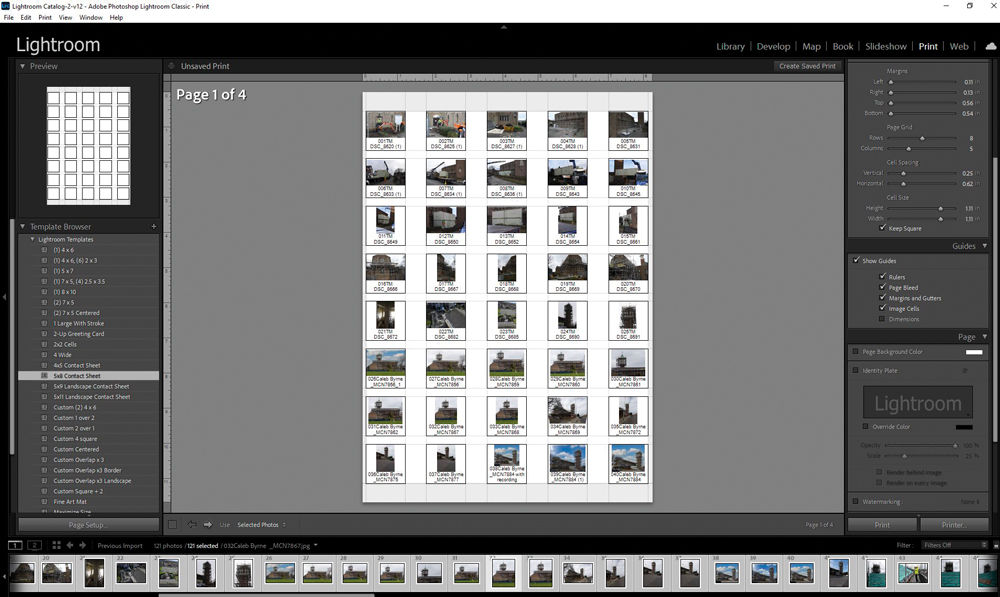
Its Print module includes dedicated Single Image/Contact Sheet templates.
You can create layouts with multiple photographs and add information such as:
- Filename
- Caption
- Title
- Date
- Equipment
- Exposure information
- Keywords
- Sequential numbering
You can also save customised layouts as templates for future projects.
This makes Lightroom Classic a good choice when the images are already catalogued there.
Photoshop can still create contact sheets
Photoshop also retains Contact Sheet functionality, allowing photographs to be assembled into a grid automatically.
However, for photographers whose primary requirement is ongoing image management, Bridge or Lightroom Classic may provide a more natural workflow because they are designed around browsing, organising and cataloguing collections of images.
The best application is therefore usually the one that fits the way you already manage your photographs.
InDesign is useful when presentation matters
If the contact sheet needs to become a highly designed presentation rather than a simple image index, InDesign offers considerably more control.
You can combine photographs with:
- Project information
- Captions
- Branding
- Page numbers
- Text
- Graphics
- Custom layouts
- Different image sizes
- Additional document information
This can be particularly useful for large commercial projects where the contact sheet is going to be circulated among a client organisation.
InDesign can also work with metadata and document information, although it is worth testing your exact workflow before relying on automatic metadata extraction for a production process. Adobe continues to provide metadata tools within InDesign, including searchable information such as author, title, copyright and keywords.
Don’t confuse a contact sheet with an archive
A contact sheet is an index and presentation tool.
It is not a substitute for a properly managed archive.
You still need:
- Reliable storage
- A sensible folder structure
- Consistent filenames
- Metadata
- Regular backups
- Version management
- A clear retention policy
The contact sheet helps you see and identify the collection. Your archive system makes sure the underlying files remain safe and accessible.
Use advanced searches when an archive becomes large
As your archive grows, browsing folders manually becomes increasingly inefficient.
Image-management applications can search using combinations of information such as:
- Keywords
- Dates
- Ratings
- File type
- Camera
- Lens
- Location
- Metadata
- Folder
- Collections
Adobe Bridge, for example, provides advanced search and filtering tools, while its Content panel can display files alongside associated information.
The aim is to be able to answer a question such as:
“Show me all the photographs I took for this client, in this location, during this project, containing this subject.”
That is when a proper archive starts to pay for itself.
Batch processing can save enormous amounts of time
Professional photographers should look for tasks that can be automated.
For example:
- Applying metadata
- Renaming files
- Converting file formats
- Resizing images
- Exporting client versions
- Creating contact sheets
- Applying standard copyright information
Adobe Bridge now also includes workflow tools that can combine tasks into repeatable processes.
The principle is simple:
If you perform the same task repeatedly, investigate whether your software can do it for you.
A few minutes spent creating a reliable workflow can save hours over the lifetime of a busy photography business.
Be careful when sharing photographs
Once photographs leave your own system, you lose some control over how they are handled.
A client may:
- Rename files
- Copy photographs
- Export them into another document
- Email them to somebody else
- Create new versions
- Remove metadata
- Convert file formats
This is another reason to retain your own master archive independently of the files supplied to clients.
Don’t assume that metadata or PDF security will prevent determined copying. They are useful tools for identification, organisation and communication, but they are not an absolute protection against somebody deliberately extracting or reproducing an image.
Build your archive for the future
The real test of an archive isn’t whether it works today.
It is whether it works five years from now.
Ask yourself:
Could I find this photograph if the client called me tomorrow?
If the answer is no, improve the system now.
You don’t need a complicated enterprise-level digital asset management system to achieve this.
For many photographers, a combination of:
- Consistent folders
- Meaningful filenames
- Useful metadata
- Keywords
- Collections or ratings
- Professional contact sheets
- Reliable backups
- A consistent delivery system
will make an enormous difference.
A simple photography archive checklist
Before considering a project complete, check:
- The photographs are stored in the correct project folder.
- Original files are clearly separated from edited versions.
- Files have a consistent naming convention.
- Copyright and creator information has been added.
- Useful project information has been recorded.
- Important photographs have appropriate keywords.
- Final client files are clearly identified.
- A contact sheet or visual index has been created where appropriate.
- Significant edits are documented when necessary.
- The project has been backed up.
- You know how to locate the project again without relying on memory.
The value of a well-managed photography archive
Good image management isn’t particularly glamorous.
It doesn’t make photographs more beautiful and it won’t improve your exposure, composition or lighting.
But it can make your photography business considerably more efficient.
A well-organised archive means that an image taken years ago can still be found, identified, explained and reused when the opportunity arises.
For commercial photographers in particular, the archive is part of the business asset.
Your photographs may have value long after the original commission has been completed. The better you organise them, the easier it becomes to realise that value.
The goal isn’t simply to store photographs.
The goal is to make your photographs findable.