
Affinity Photo 2.6: New Features and Hands-On Review
By Mike McNamee
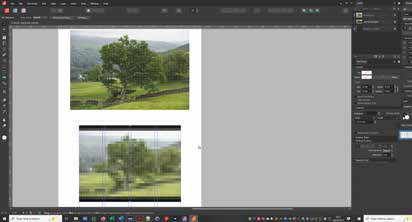
Affinity’s suite of creative applications has continued to develop into a serious alternative for photographers and designers looking for capable professional software without committing to a subscription.
Version 2.6 introduced a substantial collection of improvements across Affinity Photo, Affinity Designer and Affinity Publisher, including new selection tools, improved RAW support, enhanced page management and accessibility features.
For photographers, one of the most interesting additions was the new machine-learning-powered Object Selection Tool in Affinity Photo.
What’s new in Affinity 2.6?
Affinity 2.6 brought improvements across all three applications in the suite.
The main additions included:
- Object Selection Tool in Affinity Photo
- Select Subject improvements
- Updated SerifLabs RAW support
- An updated lens recognition database
- Improved page management in Affinity Publisher
- Multi-page spread improvements
- Reading Order controls for accessible PDFs
- QR codes as data merge fields
- Pencil, Pen and Node Tool improvements in Affinity Designer
- A range of usability improvements in Affinity Photo
For photographers, however, the selection and RAW-processing improvements are likely to be the most significant.
Affinity Photo’s Object Selection Tool
The Object Selection Tool is one of the most useful additions in Affinity Photo 2.6.
It uses machine learning to analyse an image and identify objects or subjects, allowing the photographer to create a selection without having to manually trace around every edge.
After opening an image in Affinity Photo, the Object Selection Tool can be selected from the toolbar. Moving the tool over part of the image prompts the software to analyse the content and identify the object.
In our testing, the analysis took approximately nine seconds before the selected area was displayed.
The initial selection can then be refined. Holding Alt while clicking elsewhere in the image allows additional areas to be selected, which is particularly useful where a subject consists of several separate elements.
For example, a person can contain areas such as hands, feet or detached parts of clothing that need to be included in the final selection.
Once the selection has been made, Affinity provides access to its Refine Selection controls.
Refining selections
The Refine Selection panel provides several viewing options along with controls for adjusting the edge of the selection.
An Adjustment Brush can also be used to work on specific areas, including the matte, foreground, background and feathering.
The completed result can be output as:
- A selection
- A mask
- A new layer
- A new layer with a mask
This makes the tool useful for a wide range of photographic tasks, from isolating a subject for local adjustments to creating masks for background replacement or creative compositing.
How good is it?
The Object Selection Tool isn’t a replacement for careful manual masking in every situation, but it is a useful addition to the photographer’s toolkit.
For everyday selections, being able to let the software identify a subject automatically can save considerable time. More complicated images can then be refined manually where necessary.
For photographers already using Affinity Photo, this is one of the more immediately useful additions in version 2.6.
Improved RAW support
Affinity 2.6 also introduced updated SerifLabs RAW support together with an updated lens recognition database.
RAW compatibility is particularly important for photographers because camera manufacturers continually introduce new cameras and lenses.
Being able to open RAW files directly and have the software correctly recognise the camera and lens information is therefore an important part of maintaining a practical photographic workflow.
The update also extended RAW-file handling within Affinity Publisher, allowing RAW files to be used directly on Publisher pages.
Affinity Publisher improvements
Although Affinity Publisher is aimed primarily at page layout and publishing, it has become a useful tool for photographers producing brochures, portfolios, marketing material, exhibition documents and other printed publications.
Version 2.6 introduced a number of improvements to page management.
These included new options for adding pages and working with multi-page spreads, as well as greater control over automatic page reflow.
The Pages Panel can now be used to control whether pages automatically reflow when changes are made to the document.
There were also improvements to page migration, including options such as:
- Split Masters
- Move Master Content
- Reapply Masters
- Anchor Toward Spine
These changes are particularly useful when working on complex documents where pages need to be moved or reordered.
Better control when moving pages
Page migration can become complicated when working with facing pages and master-page layouts.
Moving a page from one side of a spread to another can potentially create problems with margins, master-page objects and design elements.
Affinity 2.6 introduced more control over how these elements behave.
Split Masters can preserve the visual appearance of pages when they are moved by separating multi-page masters into individual pages.
Move Master Content retains the existing behaviour from version 2.5 and attempts to move modified master-page content along with the page.
Reapply Masters provides a different approach, allowing the appropriate master to be reapplied after pages have been moved.
Finally, Anchor Toward Spine determines how page elements behave when they cross from one side of the spine to the other.
These controls won’t be of much interest to someone simply editing photographs, but they can make a significant difference when using Affinity Publisher to create magazines, brochures, portfolios or other multi-page publications.
Affinity Designer
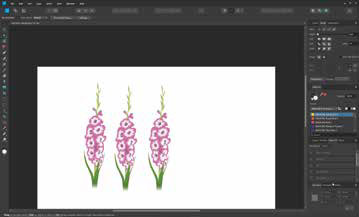
Designer remains the least familiar of the three Affinity applications for many photographers.
It is primarily a vector-design application, but it can be useful for photographers who need to create diagrams, logos, graphics, illustrations or other artwork.
Version 2.6 introduced improvements to the Pencil, Pen and Node tools, including improvements to smoothness, line styles and automatic closing.
Designer also supports a wide range of file formats, making it useful when photographic work needs to be combined with graphic or technical artwork.
Accessibility and QR codes
Affinity Publisher 2.6 also introduced a Reading Order Panel for controlling the order in which screen readers and other assistive technologies interpret PDF documents.
This is an important development for anyone producing accessible PDFs.
QR codes can also be generated using data from a data merge source, potentially making the feature useful for catalogues, event documents, promotional material and other publications where each item needs its own code.
Is Affinity a good alternative for photographers?
Affinity has become an increasingly capable software suite for photographers who want an alternative to the traditional subscription-based approach to creative software.
Affinity Photo provides image editing and RAW-processing tools, while Designer and Publisher extend the suite into graphic design and page layout.
For a photographer who occasionally needs to produce a leaflet, brochure, poster or portfolio, having all three applications available can be particularly useful.
Publisher, for example, can turn a collection of photographs into a professional-looking brochure or portfolio without requiring a separate page-layout application.
There is also a growing range of tutorials and templates available, making it possible for photographers without a graphic-design background to tackle relatively sophisticated projects.
Overall verdict
Affinity 2.6 was a worthwhile update rather than simply a collection of bug fixes.
For photographers, the Object Selection Tool and improved RAW support are among the most useful additions, while the improvements to Publisher make the wider Affinity suite increasingly capable for photographers who produce their own marketing material, portfolios and publications.
The bigger attraction remains the breadth of the suite. Affinity Photo, Designer and Publisher cover image editing, graphic design and page layout within one ecosystem.
For photographers who want professional creative software without being tied to a traditional subscription workflow, Affinity remains an interesting option.
Editor’s note: This article is based on our original testing and review of Affinity version 2.6. Software features, pricing and availability may have changed since the original review was published.